ZeroBot Link Shortener
Your complete guide to setup, configuration, and integration.
Introduction
The Link Shortener is a secure feature provided by ZeroBot that allows you to convert your URLs into protected shortlinks tied to your license key.
Each shortlink is protected by the antibot system and provides traffic filtering, analytics, and device control to ensure that only real visitors access your content.
Setup
To begin, download the package from your dashboard or directly using the link below:
Download ZeroBot ShortenerGetting Started
After downloading the package, extract it into a folder. Inside, you’ll find
config.php.
- Open config.php in your preferred text editor (VS Code, Notepad++).
- Enter your license key in the appropriate field.
- Save your changes and compress the files again into a single
.zip.
Step 1 — cPanel Configuration
In cPanel, your main domain appears in the dashboard or in your login URL, for example:
https://example.com:2083.
- Go to
File Manager → public_html(your main domain folder). - Create a new folder or upload the
.zipfile directly insidepublic_html. - Extract the package. Example:
https://example.com/test/.
- Remove any .htaccess file to avoid conflicts.
- Don’t upload index.html next to index.php.
Step 2 — Plesk Configuration
On Plesk, the structure is almost identical to cPanel, except the main folder is called
httpdocs instead of public_html.
- Go to Domains → choose your domain.
- Open the Files section.
- Upload your
.zippackage and extract it into thehttpdocsfolder.
Step 3 — Obtain the Full Link
Once the package is extracted, your configured link will look like:
https://example.com/test/Ensure that your config.php contains the correct license key.
Step 4 — Create Shortener Key
Go to your ZeroBot Dashboard → Link Shortener and create a new key.
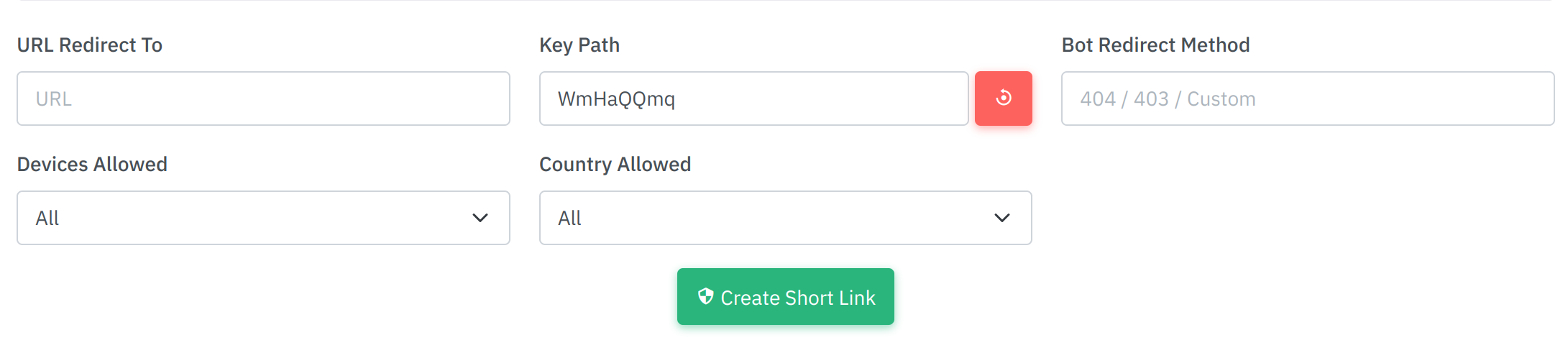
| Feature | Explanation |
|---|---|
URL Redirect To |
The target URL that visitors are redirected to. |
Key Path |
A unique identifier generated for each shortlink. |
Bot Redirect Method |
Defines how ZeroBot handles bots: 404, 403, or a custom redirect. |
Devices Allowed |
Limit access by device type: Mobile, Desktop, or All. |
Country Allowed |
Allow or restrict access by country. |
Step 5 — Final Step
After generating your key (e.g. WmHaQQmq), your final link will look like:
https://example.com/test/WmHaQQmq- Secured by ZeroBot’s antibot system.
- You can generate unlimited keys as long as your subscription is active.
views.phpstores your link analytics.
Important
After setup, you must authorize your domain from the ZeroBot dashboard.
Thank You
Thank you for choosing ZeroBot! We appreciate your trust and commitment to a safer, smarter, and more private online experience.
If you need help, our support team is always ready to assist — just reach out via Telegram or our support center.